Conditional Logic in Forms: The Complete Guide
Conditional logic is a set of IF/THEN rules that change a form while someone fills it in. A rule watches one or more answers, and when they match, it acts: showing or hiding a field, making it required, jumping to another page, updating a calculation, or choosing who gets the notification email. Nothing changes until an answer matches.
That single idea replaces the two bad options every long form otherwise forces on you: ask everybody everything, or split the form into several forms and hope people pick the right one. A form with logic asks four questions of the person who only needs four, and eighteen of the person who needs eighteen.
What conditional logic actually does
Every rule in HelloForms has the same anatomy, and it helps to name the parts because the builder uses these words too:
| Part | Meaning | Example |
|---|---|---|
| IF | The field being watched | Do you have pets? |
| STATE | The comparison | is equal to |
| VALUE | What you compare against — a typed value, a chosen option, or another field's answer | Yes |
| DO | The action taken | Show "Pet details" |
Read together: IF Do you have pets? is equal to Yes, show Pet details. The builder writes each saved rule back to you as that sentence, so you can check the logic without reading a table of settings.
Three properties make the engine predictable. First, rules are re-evaluated after every keystroke and selection, not just on submit. Second, they are evaluated together rather than in sequence — the engine keeps re-running the whole rule set until nothing more changes (a fixed point, capped at 50 passes) so a rule that depends on a field another rule just revealed still resolves correctly. Third, when two rules act on the same field the one with the lower priority number runs first and a later rule can override it, and any rule can be switched off without deleting it.
The six rule types
HelloForms groups actions into six types. Almost every real form uses the first two, and the rest exist so you never have to fake them.
- Show / Hide field. The workhorse. Reveal a follow-up question, a file upload, or a whole section based on an earlier answer. One rule can list several target fields.
- Enable / Require / Mask. Six states on one action: make an answer required or optional, enable or disable the input, and apply or remove an input mask such as
(999) 999-9999— so a purchase order number can become mandatory and formatted only when the payment method is "invoice". - Skip to / Hide page. Skip to sends people down a different path through a multi-page form, and show page / hide page add or remove a whole page from the sequence, so a returning customer never sees the new-customer questions.
- Update / Calculate field. Two modes. Text writes a merged sentence into a field using
{field}tokens; calculate evaluates an arithmetic expression with+ - * /, brackets, comparisons and the built-in functionssum,min,max,abs,round,floor,ceil,percentandcurrency— enough to total a basket, price an option or work out a duration. - Change thank you page. Show a different confirmation message, or redirect to a booking link or download, depending on what someone chose.
- Change email recipient. Route a specific notification email to the right team or inbox based on an answer such as region or enquiry type — or suppress that email entirely for a branch that should not trigger it.
Each of these has its own guide in this cluster, linked from the guides hub, and every one of them is built from the same IF/STATE/VALUE/DO anatomy above. The template library ships forms with these rules already wired, and the FAQ answers the shorter questions.
Building your first rule
The quickest useful rule is a follow-up question. Here is the whole process on a contact form:
- Open the form in the builder and add the trigger field — a Yes/No question such as Have you worked with us before?
- Add the field you want to reveal, for example Which project was it?
- Open the Conditions panel in the right-hand properties pane and choose Add rule.
- Set IF to Have you worked with us before?, STATE to is equal to, and VALUE to Yes.
- Set the action to Show and pick Which project was it? as the target.
- Use Test this condition to try sample answers without leaving the builder. Set the trigger to Yes and confirm the follow-up resolves to visible; set it to No and confirm it disappears.
- Save, then open the form's preview and fill it in as a reader would.
That last step matters more than it sounds. The test panel proves the rule resolves; the preview proves the form still reads well when the field appears, which is a design question rather than a logic one.
Choosing the right comparison
The STATE list is longer than most people expect, and picking the right one prevents most logic bugs. The builder only offers the comparisons that suit the field you picked, so it can never show you a comparison the engine would ignore. The comparisons fall into five families:
- Equality — is equal to, is not equal to. Best for single-choice questions with a fixed option list. On a checkbox question, is equal to means the ticked set matches exactly.
- Set membership — is any of, is none of. Tick several of the question's own answers and compare against all of them at once, instead of building one rule per option. Answers that no longer exist on the question are shown as unmatched and never match.
- Text matching — contains, does not contain, starts with, does not start with, ends with, does not end with. Useful for free-text triage, and on a checkbox group contains means "this answer is ticked". Capitalisation is ignored.
- Emptiness — is empty, is filled. Available on every field type, including file uploads. The right choice when any answer should move the form on, whatever the answer is.
- Numbers, dates, times and quantities — is greater than, is less than for numbers, ratings and scales; is on, is not on, is before, is after, falls on day, does not fall on day for dates and appointments; quantity is / is not / is more than / is less than for product and payment fields.
Two behaviours are worth knowing before you rely on them. A condition can compare a field against another field's answer instead of a typed value, which is how you check that a return date is after a departure date. And a negative comparison such as is not equal to or is none of is true while the question is still unanswered, so pair it with is filled when you only want it to fire after someone has answered.
Any versus all
A rule can watch more than one field. The link toggle decides how the conditions combine:
- All — every condition must be true. Narrow and specific: IF country is UK AND order total is greater than 100, show free-delivery notice.
- Any — one condition being true is enough. Broad: IF enquiry type is Complaint OR urgency is High, require a phone number.
If you find yourself building one rule per option of the same dropdown, that is usually a single Any rule with several conditions — or one is any of condition — instead. Fewer rules are easier to audit later.
Where logic goes wrong
The linter runs over the whole form on every edit and reports eleven findings, split into errors that will visibly misbehave and warnings that are usually drift. These are the ones behind most "why is my field still showing?" reports:
- A conflict (error). Two rules at the same priority watch the same answer and one shows while the other hides the same field, so the outcome depends on rule order rather than on your intent. The fix runs one of them last.
- An orphan (error, or a warning for a stale value). The rule points at a field that has since been deleted, or compares against an option that has been renamed away, so it can never fire.
- A circular dependency (error). Field A's rule depends on field B, whose rule depends on field A. The engine stops safely after 50 passes and warns, but the result is rarely what you wanted.
- Required but never visible (error). A required field that no branch can reveal — a submit blocked by a question nobody can answer. The one-click fix makes it optional.
- An unreachable field (warning). Every branch hides it, usually a field that was made conditional and then lost its trigger.
- A broken dependency (warning). A rule reads a field that is hidden by default, so its condition can never see a real answer.
- A leaky branch (warning). The field is visible until a Hide rule fires, so it flashes on screen in branches where it is irrelevant. Convert it to hidden-by-default plus a Show rule.
- Stale data risk (warning). Branch rules exist while Clear values of hidden fields is off, so abandoned answers still submit.
- A duplicate rule (warning), an invalid operator for the field type, and a bad expression in a calculation round out the list.
HelloForms lints your rule set as you edit and offers a one-click fix wherever a repair needs no judgement call — delete the rule, turn it off, strip the deleted references, run it last, make the field optional, convert it to hidden-by-default, or switch clearing back on. It is the fastest way to inherit somebody else's form and understand it.
Repairing a drifted rule set
When a question is renamed or half the rules are duplicated by a copy/paste, fixing one warning at a time is a lot of clicking. Filter the panel to Only warnings & duplicates and use Fix all in view:
- The confirmation dialog lists every pending change in rule order — the rule, the question it lands on, and the old value struck through next to the option replacing it — plus any warnings that still need a decision from you.
- The change preview panel diffs the stored rules line by line, so you can see exactly which token changes before you commit, and closing the dialog leaves the form untouched.
- Applying is one commit, so it is one undo step. Undo, redo and a per-session audit trail of every repair sit in the panel header, and the trail exports as JSON for a change record.
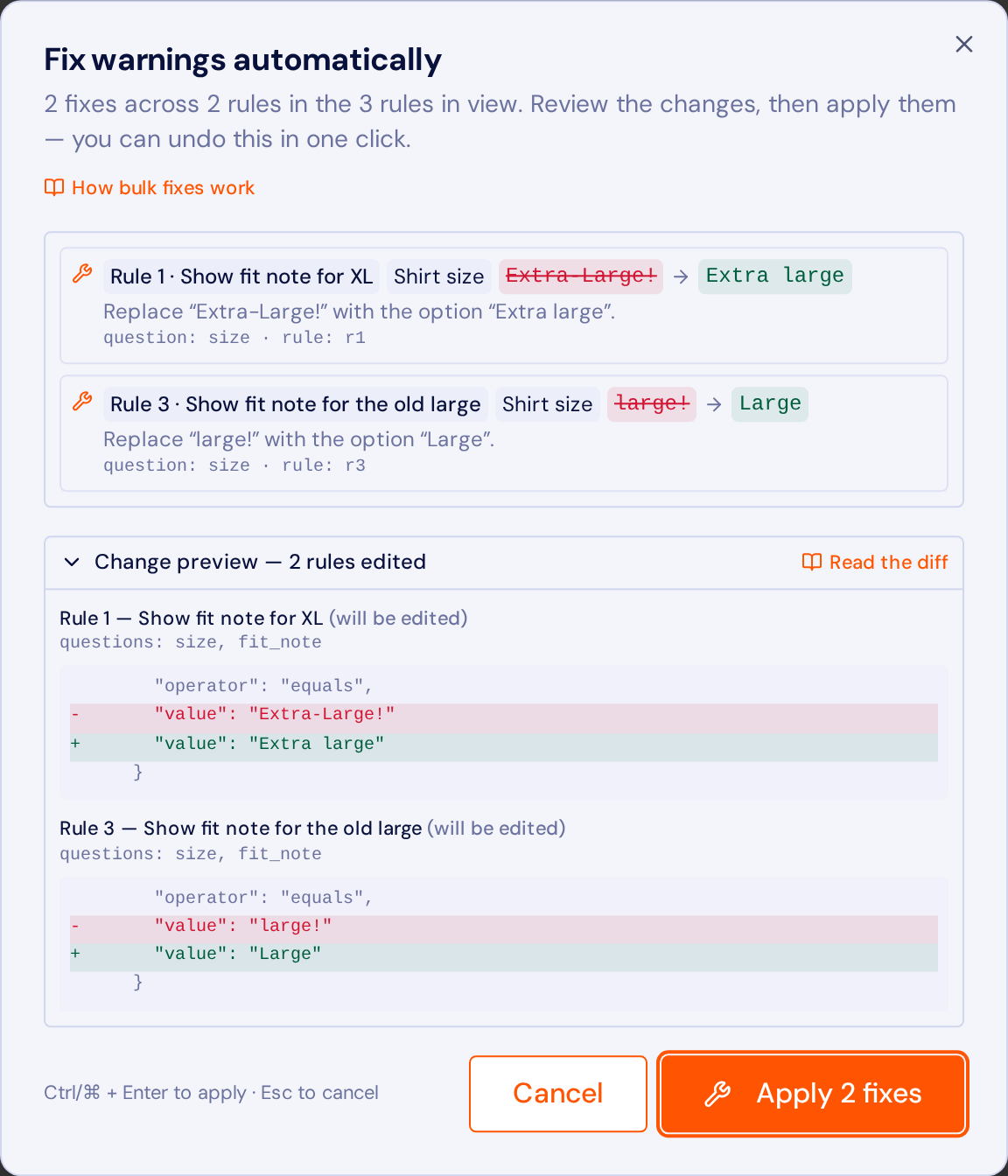
The whole loop is keyboard-only: Alt+Shift+F opens the bulk fix, Alt+Shift+Z undoes, Alt+Shift+Y redoes, Alt+Shift+A opens the audit trail, and Alt+Up/Down reorders the focused rule. Inside the dialog, Ctrl/Cmd+Enter applies and Escape cancels. Fixing logic warnings walks through each warning type, the diff and the shortcuts in detail, with worked before/after examples for the three shapes drift usually takes.
When not to use logic
Logic is not free. Every rule is a thing a future editor has to understand, and a form with forty rules is genuinely hard to change. Reach for something simpler when:
- The form is short and every question applies to everyone. Just ask.
- You are hiding a field for privacy. Hidden is not secret — remove the field or restrict who can see the submissions instead.
- Two audiences share almost nothing. Two clear forms beat one form with two parallel paths.
FAQ
Does conditional logic work on mobile?
Yes. Rules are evaluated in the browser as answers change, so the behaviour is identical on a phone, a tablet and a desktop. Revealed fields push the rest of the form down rather than overlaying it, and the form scrolls to keep the field you are answering in view.
Do hidden fields still get submitted?
No, as long as Clear values of hidden fields is on, which it is by default. When a rule hides a field, its value is excluded from the submission, from calculations and from required checks, so a hidden required field can never block a submit. Turn clearing off and earlier answers are kept — the linter raises a stale-data warning when you do.
How many rules can one form have?
There is no practical limit — forms with dozens of rules run fine because the engine batches evaluation rather than re-rendering per rule. The limit in practice is human: past about twenty rules, consider splitting the form or replacing several rules with one Any rule.
Can a rule depend on a calculated field?
Yes. Calculations resolve before the rules that read them, and the engine re-runs until the whole set settles, so you can safely show a field when a calculated total goes above a threshold.
Which rule wins when two act on the same field?
The one with the higher priority number, because rules run in priority order and a later rule overrides an earlier one. Drag a rule in the list, or press Alt+Up / Alt+Down, to change that order. When two rules at the same priority disagree, the linter reports a conflict rather than guessing.
Can I switch a rule off without deleting it?
Yes. A disabled rule stays in the list, is skipped by the engine, and is ignored by the duplicate and conflict checks, so it is the safe way to park a branch you are still deciding about.
Will logic slow the form down?
No measurable amount. Rules are evaluated locally with no network request, so there is no round trip between answering a question and seeing the form respond.
Try it on a real form
These templates already ship with the logic described above. Open one, fill it in, and watch the rules fire — no account needed.