Fix Form Logic Warnings: Bulk Fixes, Diffs, Shortcuts
Logic warnings are advisory notes the builder adds to rules that can no longer do what they say — a value that matches no current option, a reference to a deleted question, a rule that acts on its own trigger, or an exact duplicate. Nothing is blocked, and nothing changes until you choose a repair.
The panel lints continuously rather than at publish time, so a warning appears the moment a question is renamed or a rule is pasted twice. That matters most when you inherit somebody else's form: the warning list is a faster map of the drift than reading forty rules by hand.
Two layers of checking
There are two checks running, and knowing which one you are looking at saves a lot of confusion:
- Per-rule warnings sit on the rule card itself and describe rules that can no longer do what they say. These are the four in the table below, and they are what Fix all in view repairs in bulk.
- Form-wide linter findings look at the rule set as a whole — conflicts, loops, unreachable fields, leaky branches — and appear as errors and warnings above the list, each with its own one-click remedy.
The four per-rule warnings and what each one means
| Warning | What happened | The safe repair |
|---|---|---|
| Value matches no current option | A condition compares against an answer that is no longer in the question's option list | Pick the current option, or keep the text as a custom value |
| References a deleted question | A condition or action points at a question id that is not in the form any more | Remap the reference, or delete the rule |
| Acts on its own trigger | The THEN action writes to the same question the IF condition reads | Target a different question, or split the rule in two |
| Duplicate rule | Another rule has the same type, conditions and actions | Delete one of the copies |
Each rule row shows its own warnings with an explanation and, where a repair needs no judgement, a one-click fix. Only warnings & duplicates filters the list down to the rules that need attention, which is also what the publish-time banner opens.
Only two of the four can ever be repaired automatically. A value is replaced only when exactly one current option is an obvious match of the saved text — same letters and digits, ignoring case and punctuation, so Extra-Large! resolves to Extra large but Red against Red and Dark red does not. On an is any of or is none of condition each ticked answer is checked separately, so one unmatched answer in a list of five is the only one replaced. Duplicates keep the first copy in list order and delete the rest. Deleted-question remaps and self-referential rules are always reported as manual, never touched.
The eleven form-wide findings
The linter re-runs over the whole form on every edit. Errors will visibly misbehave for a respondent; warnings are usually drift. Nothing blocks saving or publishing.
| Finding | Level | One-click fix |
|---|---|---|
| Conflict — two rules at the same priority show and hide the same field | Error | Run this rule last |
| Orphan — the rule references fields that no longer exist | Error | Remove deleted fields from this rule |
| Orphan — a condition compares against an option the question no longer has | Warning | Manual |
| Circular dependency between rules | Error | Manual: remove one rule in the loop |
| Required but never visible | Error | Make this question optional |
| Unreachable field — every branch hides it | Warning | Manual: add a Show rule, or delete the field |
| Broken dependency — the rule reads a field that is hidden by default | Warning | Manual: reveal that field first |
| Leaky branch — the field shows until a Hide rule fires | Warning | Hide by default and keep the Show rule |
| Stale data — "Clear values of hidden fields" is off while branch rules exist | Warning | Clear values of hidden fields |
| Duplicate rule | Warning | Delete this rule |
| Invalid operator for the field type, or a bad calculation expression | Warning | Manual: pick a valid operator, or fix the expression |
Two of these deserve a note. A conflict is only reported when both rules sit at the same priority — at different priorities the higher number simply wins, which is a decision rather than a bug — and "run this rule last" is exactly what the fix does. And a circular dependency is caught before it can hurt: evaluation stops at 50 passes and warns rather than looping.
Fixing a batch with the bulk fix dialog
Fix all in view plans every safe repair across the rules you can currently see and opens a confirmation dialog before anything is written. The dialog is the whole review surface:
- The description line summarises the batch and the scope, for example Replace 5 values, delete 2 duplicate rules in the 9 rules in view.
- Each change is listed in rule order as an impact line: the rule position and name, the question it lands on, and the value being replaced shown as struck-through old text followed by the new option. Duplicate deletions say which copy survives.
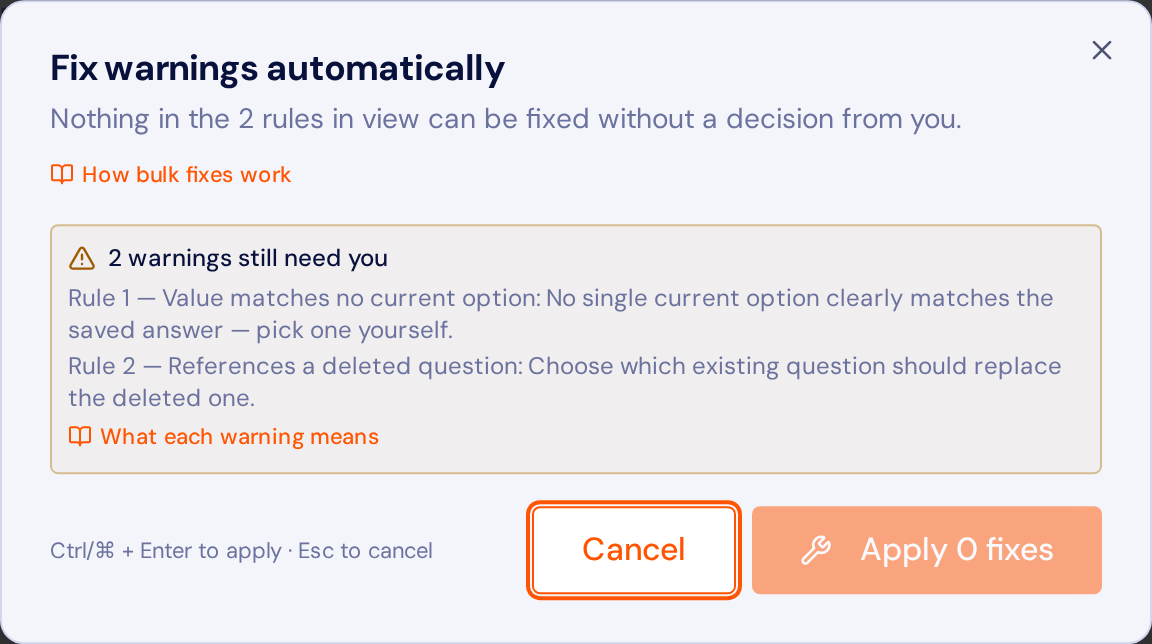
- Warnings that still need a decision are listed underneath, so a batch never hides them.
- The change diff shows the same batch at the level of the stored rules.
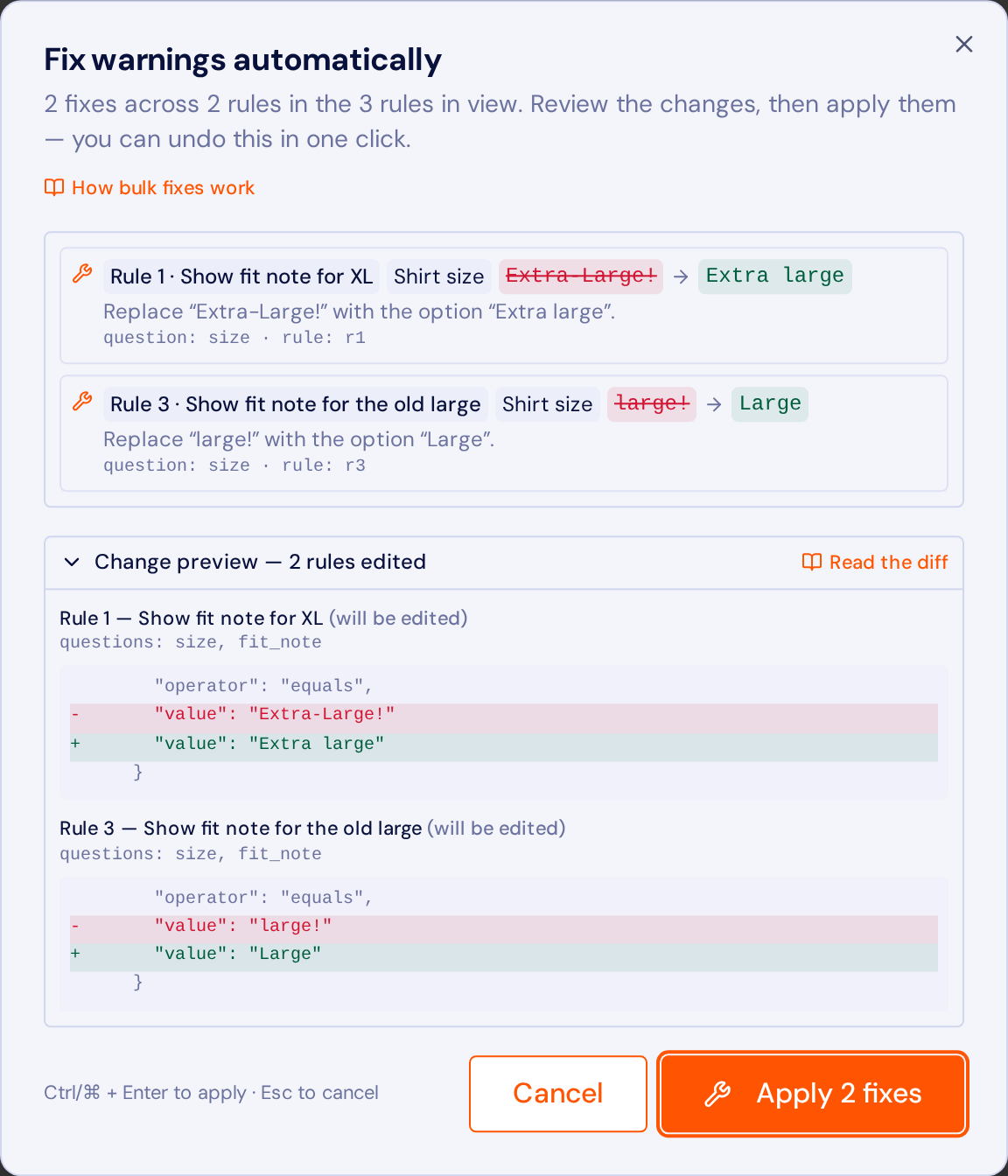
Confirming applies the batch as a single commit, which means it is also a single undo step. If nothing in the current view can be repaired without a decision, the dialog says so and there is no apply button to press by mistake.
Worked example: three drifted rule sets
These are the three shapes drift almost always takes. Each one is a real fixture the builder is tested against, so the numbers below are the engine's own output rather than an illustration.
| Fixture | What drifted | Plan | Left to you |
|---|---|---|---|
| Renamed options | Values Extra-Large! and large! on a retyped size dropdown | Replace “Extra-Large!” with “Extra large”; replace “large!” with “Large” | Nothing |
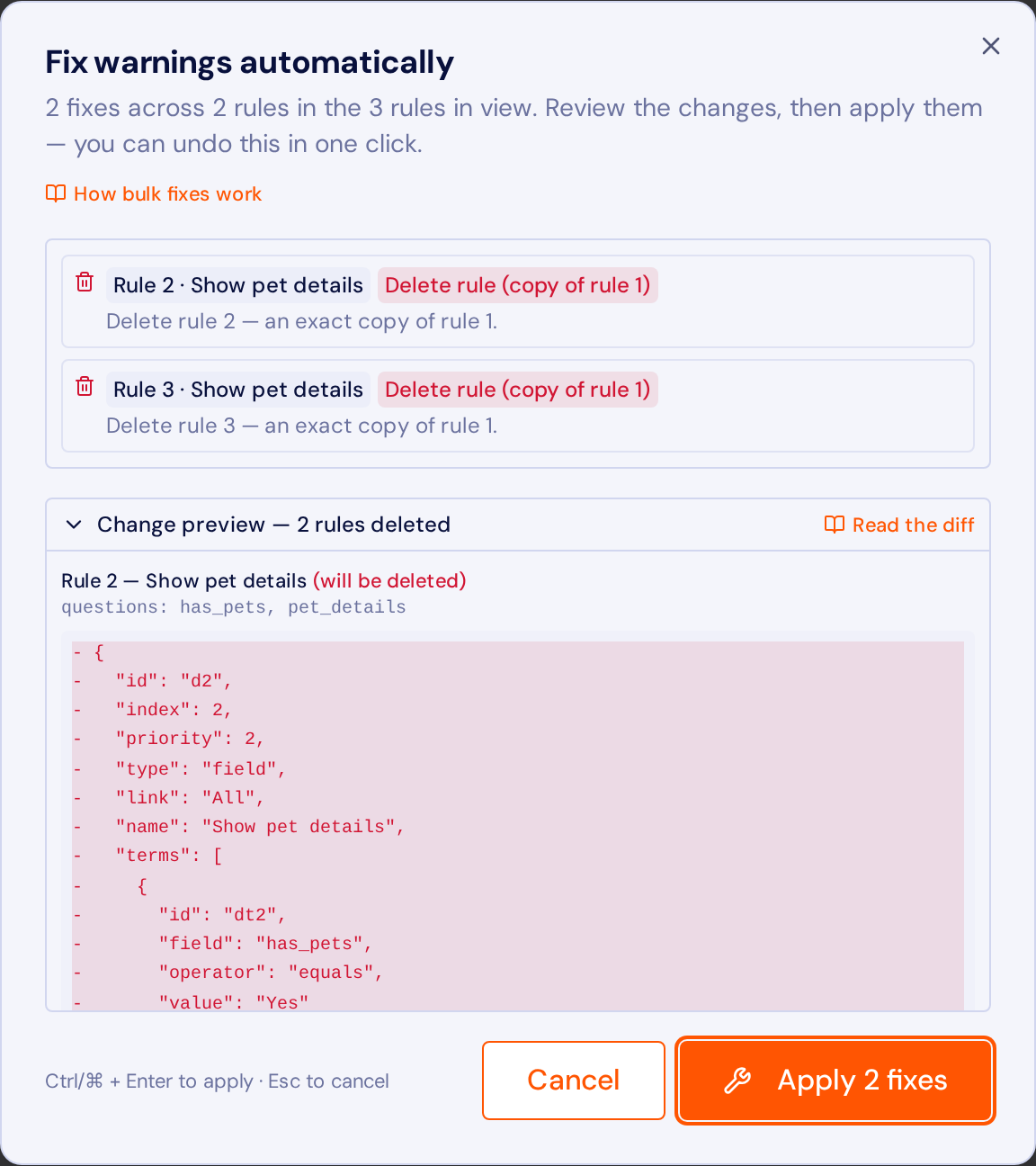
| Pasted rules | The same show rule exists three times | Delete rule 2 and rule 3, both exact copies of rule 1 | Nothing |
| Manual repairs | Value Extra large! matches two current options; a rule points at a deleted question | No automatic changes | Pick the option yourself; remap or delete the rule |
Reading the token change diff
The plan list says what will happen in prose. The change preview panel says it precisely: each affected rule is serialised and compared line by line, so you see exactly which token changes before you commit.
Here is the whole change preview for the renamed-options fixture above, copied from the engine rather than retyped:
# Rule 1 · Show fit note for XL — modified (+1 / -1)
  "operator": "equals",
- "value": "Extra-Large!"
+ "value": "Extra large"
  }
# Rule 3 · Show fit note for the old large — modified (+1 / -1)
  "operator": "equals",
- "value": "large!"
+ "value": "Large"
  }
A duplicate deletion reads differently, because the whole rule goes:
# Rule 2 · Show pet details — deleted (+0 / -25)
- {
- "id": "d2",
- "index": 2,
- "priority": 2,
- "type": "field",
- "link": "All",
- "name": "Show pet details",
- "terms": [
- {
- "id": "dt2",
- "field": "has_pets",
- "operator": "equals",
- "value": "Yes"
- }
- ],
- "actions": [
- {
- "kind": "visibility",
- "visibility": "Show",
- "fields": [
- "pet_details"
- ]
- }
- ]
- }
Points worth knowing:
- Per rule, before and after. Every entry is headed by the rule's position and name, and marked modified or deleted. A deleted duplicate shows its whole body as removed lines.
- Trimmed, not truncated. Only changed lines plus a little surrounding context are shown, so a two-token edit does not print an entire rule.
- Added and removed counts per rule, and a summary such as 5 rules edited, 2 rules deleted, which is also what a screen reader hears when the dialog opens.
- It describes, it never mutates. The diff is computed from the pending plan against a copy of the rules; closing the dialog leaves the form untouched.
- Question ids travel with each entry, which is what lets the same change land in the audit trail with the fields it touched.
The panel starts expanded and can be collapsed if you already trust the plan.
Undo, redo and the audit trail
Every repair — single or bulk — is undoable. The toast that confirms a batch carries an undo action, and the panel header keeps Undo and Redo buttons labelled with the step they will reverse, so you can see what is about to move before you click.
Undo answers "put it back". The Audit button answers "what happened, and to which rule?": each fix, bulk fix, undo and redo is appended with a timestamp, the rules changed, the rules deleted, the questions referenced, and the detail lines from the plan. The trail can be filtered and exported as JSON for a change record, and it lives with the editing session rather than the account, so it survives switching builder tabs without following you around forever.
Alt+Shift keyboard actions
The whole repair loop runs without a pointer. Alt+Shift keeps these clear of browser and builder shortcuts, and they are deliberately ignored while you are typing in a field, a textarea or a select.
| Shortcut | Action |
|---|---|
| Alt+Shift+F | Open Fix all in view for the current scope |
| Alt+Shift+Z | Undo the last fix |
| Alt+Shift+Y | Redo the fix you just undid |
| Alt+Shift+A | Open the fix audit trail |
| Alt+Up / Alt+Down | Move the focused rule up or down the priority list |
Inside the dialog the gesture changes on purpose: Ctrl+Enter or Cmd+Enter applies the batch and Escape cancels it, because a bare Enter would fire whichever control happened to have focus. Opening the dialog moves focus straight to the apply button, so the keyboard flow is open, hear the summary, apply.
Each button carries the same shortcut in its tooltip and in aria-keyshortcuts, and every action announces its result in a live region — Fixed 3 warnings … Press Alt+Shift+Z to undo — so the outcome is available whether you are watching the list or listening to it.
Working order that avoids rework
- Filter to Only warnings & duplicates so the scope is exactly the flagged set.
- Press Alt+Shift+F and read the impact lines, then the change diff.
- Apply, then check the announcement count against what you expected.
- Work through the manual list by hand: remap deleted questions, split self-referential rules.
- Read the form-wide findings above the list and clear the errors first — a conflict, a loop or a required-but-never-visible field changes what a respondent sees, while a leaky branch or a stale-data warning only changes what you collect.
- Re-test the affected rules with Test this condition, then open the preview and fill the form in as a reader would. The linter proves the rules are coherent; only the preview proves the form still reads well.
Warnings are not the same thing as a logic bug. For conflicts, orphans, unreachable fields and loops — the patterns that produce "why is my field still showing?" — start from the conditional logic guide, then check the guides hub for the rule type you are using. If you are building from scratch, the template library ships forms with the logic already wired, and pricing covers the limits per plan.
FAQ
Will a bulk fix ever change something I did not see?
No. The dialog lists every change before it runs, and the plan is limited to the rules currently in view. Anything that needs a judgement call is reported as manual and left exactly as it was.
How do I undo a whole batch?
Press Alt+Shift+Z, click Undo in the panel header, or use the undo action on the toast. A batch is committed as one step, so a single undo reverts all of it, and Alt+Shift+Y puts it back.
Why is a value warning not offered a one-click fix?
Because more than one current option, or none, matches the saved text closely enough to be certain. Rather than guess between Red and Dark red, the builder leaves it for you and keeps the warning visible.
Can I publish a form that still has warnings?
Yes. Warnings are advisory, not blocking. The publish-time banner links into the panel with the flagged rules already filtered so you can decide, but nothing stops the form going live.
Where does the audit trail live?
In the editing session for that form, so it survives reloads and switching builder tabs but is not stored on your account. Export it as JSON if you need a permanent change record.
What is the difference between a rule warning and a linter finding?
A rule warning is about one rule that can no longer do what it says, and it is what a bulk fix repairs. A linter finding is about the rule set as a whole — a conflict, a loop, an unreachable field, a leaky branch, or clearing being switched off — and it is reported above the list with its own remedy.
Do the shortcuts work while I am typing in a rule?
No, and that is intentional. Alt+Shift actions are ignored when focus is in an input, textarea, select or editable field, so typing a value can never trigger a repair.
Try it on a real form
These templates already ship with the logic described above. Open one, fill it in, and watch the rules fire — no account needed.